Public Record Éire Repository — User Guide
This guide explains how to create and use a Public Record Éire Repository Account, access existing records, upload new documents, view certificates and check blockchain timestamp status.
Important: If you previously submitted documents, create your Repository Account using the same email address. After you verify that email address, eligible existing documents using it are automatically associated with your account.
1. Creating Your Repository Account
Create a Repository Account using your given name, email address and a new Account Password.
Important: If you have previously uploaded documents to Public Record Éire, sign up using the same email address you used for those submissions. Once your email address is verified, existing documents with that email address are automatically associated with your Repository Account.
Your Account Password must contain at least 12 characters and include an uppercase letter, a lowercase letter, a number and a symbol.
Your Repository Account Password is not the same as a Document Access Password. Keep them separate.
- Enter your Given Name and Email Address.
- Choose and confirm your Repository Account Password.
- Select Create Account.
- Check your email for the six-digit verification code.
- Enter the code on the Verify Repository Account screen.
- If necessary, use Resend Verification Code to request a new code.
Note: If account approval is enabled on the website, you may see a message confirming that your email is verified but your account is waiting for approval.
2. Existing Documents
After email verification, Public Record Éire automatically associates eligible existing repository documents that use the same email address with your account.
This includes older documents that were submitted before Repository Accounts were introduced, provided the email address on the document matches your verified account email address.
Important: Use the same email address as your previous Public Record Éire submissions. Signing up with a different email address will prevent the system from automatically identifying those earlier records.
You do not need to upload an existing document again merely because you have created a Repository Account.
3. Signing In
Repository sign-in uses both your Account Password and a six-digit code sent to your email address.
- Enter your Repository Account email address and Account Password.
- Select Sign In.
- Public Record Éire emails you a six-digit sign-in code.
- Enter the code to complete sign-in.
- You are then taken to your Repository dashboard.
Note: A fresh email verification code is required at every sign-in. If the code expires, begin the sign-in process again or use the resend option when available.
Repeated failed sign-in attempts may temporarily lock further attempts for security.
4. Account Password and Document Access Passwords
Public Record Éire uses two different kinds of password. They serve different purposes.
| Password | Used for |
|---|---|
| Repository Account Password | Signing in to your Repository Account. You create this when signing up. |
| Document Access Password | Protecting an individual document. You choose one when uploading each document and it is used by public/legacy document access workflows. |
Important: Do not use your Repository Account Password as a Document Access Password. Document Access Passwords should be kept separately and securely.
Public Record Éire does not display the plaintext Document Access Password back to you. Keep a secure record of it.
5. My Records
My Records is the main account overview. It shows a summary of your repository information and separates it into three areas:
- My Documents — the documents associated with your Repository Account.
- My PublicRecordÉire Certificates — repository-generated certificate records.
- My Blockchain Timestamps — independent timestamp status for eligible documents.
The summary also shows how many blockchain timestamps are confirmed and how many are still awaiting confirmation.
6. My Documents
The My Documents table can show the Document Type, Document Name, Registered Letter Number, Registered Letter Date, PublicRecordÉire Certificate ID, blockchain timestamp status and viewing information.
Select View Document to open an authorised secure viewing session.
Note: Secure viewing links are time-limited. If a viewing session expires, return to My Documents and open the document again.
Documents are presented through the repository's secure viewer. The viewer is intended for viewing rather than normal public file downloading.
7. Uploading a New Record
You must be signed in to upload a new record from your Repository Account.
- Open Upload New Record.
- Choose the appropriate Document Type.
- Enter a clear Document Name.
- Enter the Registered Letter Number.
- Enter the Registered Letter Date.
- Choose a Document Access Password for this document.
- Select the document file to upload.
- Accept the terms and conditions.
- Select Upload Document.
Your Repository Account name and email address are supplied automatically when you upload while signed in.
PDF is the preferred file format. JPG, PNG, DOC and DOCX files can also be accepted; the repository stores these separately and attempts to convert them to PDF where server support is available.
Important: Keep the Registered Letter Number and Document Access Password for each document in a secure place. They may be required for document-access workflows outside your signed-in account.
8. Document Types
The upload screen allows you to choose from the document types made available by Public Record Éire. These may include Status Correction, Travel & Identity, Health Information, Certificates, Notices, Declarations, Property Claims, Private Clubs, and Wills & Trusts.
Choose the type that accurately describes the document being submitted.
9. PublicRecordÉire Certificates
Eligible repository records may have a PublicRecordÉire Certificate. Your account displays the Certificate ID and, where available, a View Certificate action.
Certificates provide repository evidence associated with the stored document, including document fingerprint/timestamp information where generated.
10. Blockchain Timestamps
Eligible documents can have an independent OpenTimestamps blockchain proof. The status shown in your account may include Awaiting confirmation, Confirmed, Failed, Not stamped or Unavailable.
Awaiting confirmation is not normally an error. Blockchain confirmation can take time.
Where an action is available, you may see Stamp Now or Check Blockchain Confirmation. Use these controls only for the document shown beside the action.
Note: A confirmed blockchain timestamp provides independent timestamp evidence for the document fingerprint; it does not place the document itself on the blockchain.
11. Accessing Records Without Your Account
Some Public Record Éire pages may provide password-based record access outside the Repository Account.
A Document Access Password can be used for supported password-search workflows. The Access Request workflow may require both the Registered Letter Number and the Document Access Password for the selected document.
Important: Your Repository Account Password is not used to unlock an individual document through these workflows.
12. My Account
My Account shows your Given Name, Email, repository username, verification status and security information.
It also shows information such as your last account sign-in, last email verification sign-in and when your Account Password was last changed.
Changing your Account Password
- Open My Account while signed in.
- Enter your current Account Password.
- Enter and confirm the new Account Password.
- Ensure the new password has at least 12 characters with uppercase, lowercase, a number and a symbol.
- Select Change Account Password.
Changing your Account Password does not change any Document Access Passwords.
13. Logging Out
Use Log Out when you have finished using your Repository Account, particularly on a shared or public computer.
14. Troubleshooting
| Problem | What to do |
|---|---|
| My previous documents do not appear | Confirm that your Repository Account uses the same email address as the original submissions. If it does and records are still missing, contact Public Record Éire. |
| I did not receive the sign-up verification code | Check spam/junk folders, confirm the email address entered is correct, then use Resend Verification Code. |
| I cannot sign in | Check the account email and Account Password. Your email must be verified and, where approval is required, your account must be approved. |
| My sign-in code does not work | Sign-in codes are temporary. Request a new code or restart the sign-in process. |
| I forgot my Document Access Password | It is separate from your Account Password and is not displayed in plaintext by the repository. Contact Public Record Éire if you require assistance. |
| My secure document viewer expired | Return to My Documents and select View Document again to start a new authorised viewing session. |
| Blockchain status says Awaiting confirmation | This can be normal. Check again later or use Check Blockchain Confirmation when that action is offered. |
| My account says Awaiting approval | Your email has been verified but an administrator must approve the account before sign-in is permitted. |
15. Security Tips
- Use a unique Repository Account Password.
- Keep your Account Password and Document Access Passwords separate.
- Do not share email verification or sign-in codes.
- Keep Registered Letter Numbers and Document Access Passwords securely.
- Log out after using a shared computer.
- Make sure your email account itself is protected, because Repository sign-in codes are sent by email.
How it works
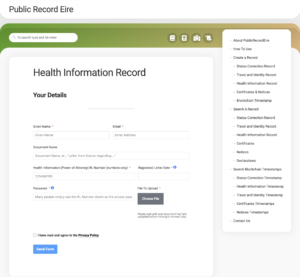
When you upload a document to PublicRecordEire, you create a ‘Password’ which is known to you.
 In the event that you are not capable of providing this password, it should be known to the power of attorney identified on the back of your card.
If you need to provide access to these documents, ie., a doctor or law enforcement officer, scan the QR code on the back of your card. This will bring you to PublicRecordEire.
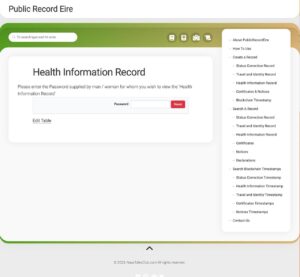
Here you can Search for a document, for example, Health Information Record
Enter the password and the information is displayed.
In the event that you are not capable of providing this password, it should be known to the power of attorney identified on the back of your card.
If you need to provide access to these documents, ie., a doctor or law enforcement officer, scan the QR code on the back of your card. This will bring you to PublicRecordEire.
Here you can Search for a document, for example, Health Information Record
Enter the password and the information is displayed.